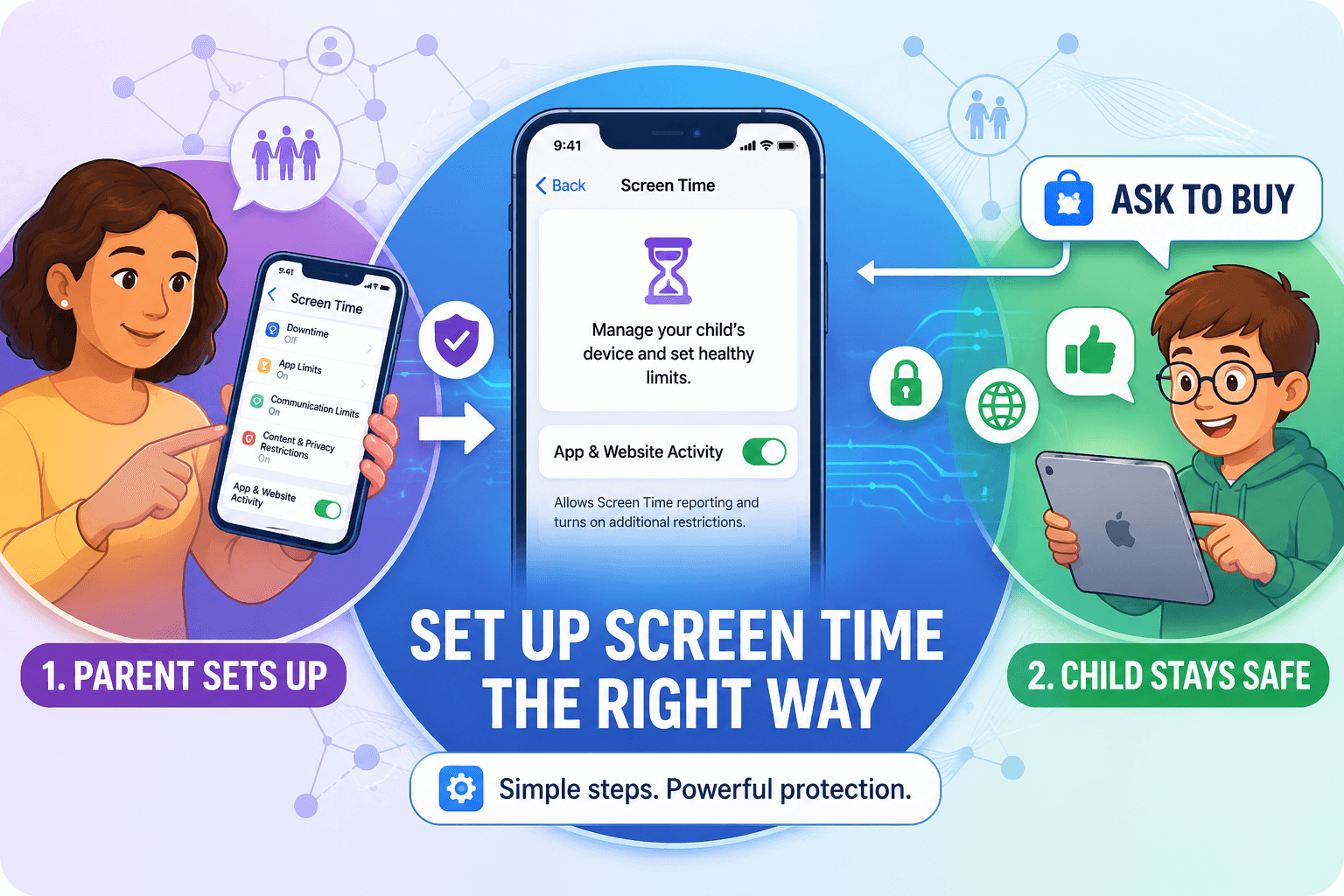
The Complete iPhone Parental Control Guide from Start to Finish
A comprehensive step-by-step guide for Coptic Orthodox parents on setting up iPhone and iPad parental controls, from Family Sharing to Screen Time and Focus Modes.
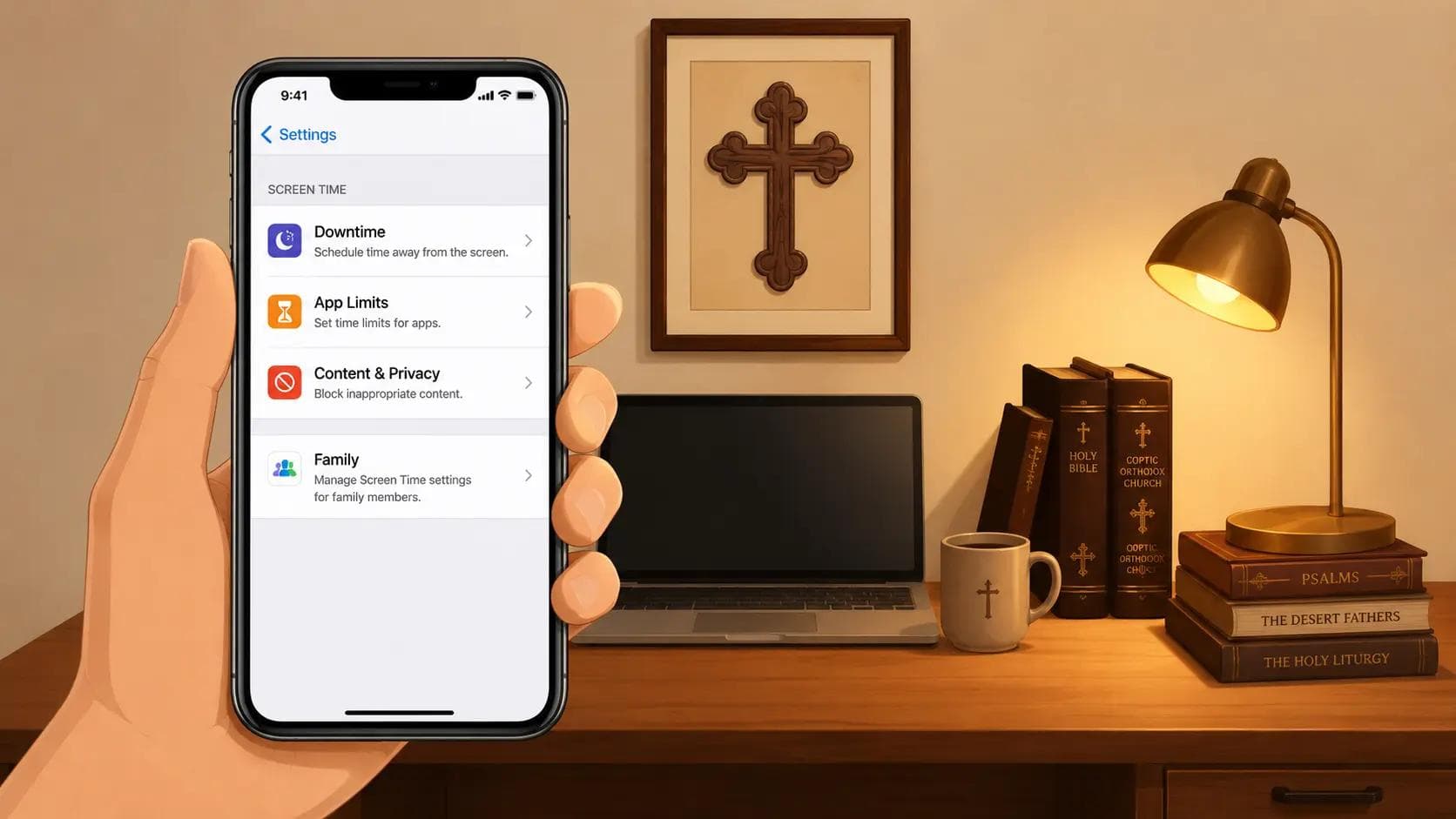
Best Screen Time Settings for Orthodox Families
The Complete Orthodox Christian Guide to iPhone & iPad Parental Controls
Modern parenting is no longer only about protecting children in physical spaces. Parents now must guide children through digital environments designed to capture attention, normalize unhealthy behavior, and expose young minds to content far beyond their maturity level.
For Orthodox Christian families, digital parenting is not simply about blocking apps or limiting screen time. It is about forming children who can live with attention, self-control, wisdom, and spiritual balance in a distracted world.
This guide walks Orthodox families through the most important iPhone and iPad parental controls while also explaining how to use them intentionally and realistically.
The goal is not fear or total isolation from technology.
The goal is raising children who can use technology wisely without becoming ruled by it.
Before You Begin: Family Expectations Matter More Than Filters
Before setting restrictions:
- Talk openly with your children
- Explain why limits exist
- Build trust alongside boundaries
- Avoid making technology “forbidden fruit”
- Focus on long-term habits, not temporary control
Parental controls work best when paired with:
- healthy family routines
- prayer life
- device-free meals
- consistent sleep
- offline hobbies
- real-world friendships
No parental control can replace engaged parenting.
Section 1: How to Activate Parental Controls
To activate parental controls properly, you should first set up Apple Family Sharing.
Family Sharing allows you to:
- manage your child’s screen time remotely
- approve purchases
- set communication limits
- restrict content
- monitor app activity
This is the foundation for healthy device management.
Step-by-Step: Set Up Family Sharing
Set Up Family Sharing
- 1On your Apple device, open: Settings → Your Name → FamilyIf you do not see “Family,” you may still need to set up Family Sharing.
- 2Tap: Add Family Member
- 3Add your child’s Apple account.If your child does not already have an Apple ID, Apple will guide you through creating one.
- 4Once your child appears under Family, tap their name to open parental control options.From here, you can manage: Screen Time, communication, content restrictions, purchases, location sharing, and app permissions.
Section 2: How to Turn On Screen Time
Screen Time is Apple’s main parental control system.
It allows Orthodox families to:
- reduce distraction
- limit entertainment apps
- protect sleep
- build healthier routines
- reduce compulsive scrolling
Step-by-Step: Enable Screen Time
Enable Screen Time
- 1On your Apple device, open: Settings → Family → Your Child’s Name
- 2Tap: Screen Time
- 3Tap: Turn On Screen Time
- 4Review the available options:Downtime, App Limits, Communication Limits, Content Restrictions, Always Allowed, Privacy Settings. You can customize all of these later.
Section 3: How to Turn On Downtime
Downtime blocks access to apps and notifications during selected hours.
This is one of the most important settings for Orthodox families because it protects:
- sleep
- school focus
- prayer routines
- church participation
- family time
Many parents underestimate how damaging unrestricted nighttime device access becomes over time.
Recommended Orthodox Family Downtime Settings
Ages 6–10
7:00 PM – 7:00 AM
Ages 11–13
8:00 PM – 7:00 AM
Ages 14–17
9:00 PM – 6:30 AM
Whenever possible:
- keep phones outside bedrooms overnight
- use a shared charging station
- avoid devices before bed and after waking
Step-by-Step: Enable Downtime
Enable Downtime
- 1Open: Screen Time → Downtime
- 2Turn on: Scheduled
- 3Choose: Every Day or Customize DaysMany families use slightly later hours on weekends.
- 4Set: From and To timesExample: From 8:00 PM To 7:00 AM
- 5Enable: Block at DowntimeThis prevents children from bypassing limits after Downtime begins.
Section 4: How to Set App Limits
Not all screen time is equal.
Educational apps, communication tools, and creative apps should not necessarily have the same limits as:
- TikTok
- YouTube
- Roblox
- endless-scrolling social media
- gaming platforms
The goal is intentional usage rather than unlimited consumption.
Recommended Orthodox Family App Limits
Ages 6–10
- 30–60 minutes entertainment daily
- no social media
- minimal gaming
Ages 11–13
- 1–2 hours entertainment daily
- monitored YouTube usage
- no unrestricted social media
Ages 14–17
- customized based on maturity
- increasing responsibility
- continued accountability
Apps Orthodox Families Commonly Restrict
- TikTok
- Snapchat
- Discord
- Roblox
- YouTube
- Safari unrestricted browsing
- mature games
Step-by-Step: Set App Limits
Set App Limits
- 1Open: Screen Time → App Limits
- 2Tap: Add Limit
- 3Choose: an app category or a specific appTo find specific apps: Tap: All > next to the category. Example: Social → All > → TikTok
- 4Set: daily time limitsYou can choose: Every Day or Customize Days
- 5Enable: Block at End of LimitThis immediately blocks access when time expires.
- 6Tap: AddTo remove limits later: Return to App Limits and disable them.
Section 5: How to Limit Harmful Contact
Phones are no longer only communication tools.
They are gateways to:
- social pressure
- bullying
- inappropriate conversations
- anonymous communication
- online grooming
Orthodox families should gradually introduce communication freedom as maturity develops.
Recommended Communication Settings
Ages 6–12
Contacts Only
Ages 13–15
Contacts & Groups with Known Friends
Ages 16+
Gradual independence with accountability
Step-by-Step: Communication Limits
Communication Limits
- 1Open: Screen Time → Communication Limits
- 2Tap: During Screen Time
- 3Select: Contacts OnlyRecommended for most children.
- 4Tap: Back → During Downtime
- 5Select: Specific ContactsChoose trusted contacts such as: parents, siblings, grandparents, close family
- 6Enable: Manage Child’s ContactsYour child will need to approve this on their own device.
Section 6: How to Limit Harmful Content
One of the biggest dangers online is accidental exposure to:
- pornography
- explicit language
- violent content
- sexualized social media
- unhealthy online influences
Content restrictions reduce exposure and create safer environments for children.
Part A: Hide Sensitive Photos
Apple can detect nude photos and videos sent to children and provide warnings before viewing or sharing.
Hide Sensitive Photos
- 1Open: Screen Time → Communication Safety
- 2Enable: Communication SafetyThis feature warns children before viewing sensitive images.
Part B: Restrict Access to Apps
Restrict Access to Apps
- 1Open: Screen Time → Content & Privacy Restrictions
- 2Tap: Allowed Apps
- 3Review installed apps and disable apps you do not want your child using.Common examples: Safari, FaceTime, AirDrop, App Store
Part C: App Store Content Restrictions
App Store Content Restrictions
- 1Open: Content Restrictions
- 2Review: Apps, Movies, TV Shows, Music, Books
- 3Set restrictions based on: age, maturity, emotional readiness
Part D: Restrict Websites on Safari
Restrict Websites on Safari
- 1Open: Content Restrictions → Web Content
- 2Choose: Limit Adult Websites or Allowed Websites OnlyFor younger children: Allowed Websites Only can be very effective. For older teens: This setting may become too restrictive.
Part E: Customize Siri Language & Search
Customize Siri Language & Search
- 1Open: Content Restrictions → Siri
- 2Disable: Explicit Language
- 3Review Siri web search settings.Disable unrestricted search functions if desired.
Section 7: How to Restrict In-Game Communication
Gaming platforms increasingly function like social media.
Children can encounter:
- explicit language
- strangers
- manipulation
- bullying
- inappropriate conversations
Many parents focus on gameplay while ignoring communication features.
Recommended Orthodox Family Settings
Younger Children
Disable communication entirely
Teens
Allow Friends Only communication
Restrict In-Game Communication
- 1Open: Content Restrictions → Game Center
- 2Review settings for: multiplayer gaming, adding friends, messaging, voice communication
- 3Choose: Don’t Allow, Friends Only, EveryoneFor most younger children: Don’t Allow is safest.
Section 8: How to Manage Your Child’s Privacy
Children should not have unrestricted permission to:
- share location
- install apps
- modify accounts
- bypass restrictions
Privacy settings help parents maintain healthy oversight while children mature.
Manage Privacy Settings
- 1Open: Screen Time → Content & Privacy Restrictions
- 2Under Privacy, select: Share My Location
- 3Choose: Allow or Don’t AllowIf you use monitoring apps, location sharing may need to remain enabled.
- 4Return to: Allow Changes
- 5Review permissions for: account changes, passcode changes, app installations, deleting apps, privacy changesDecide which permissions remain under parental control.
Section 9: How to Limit Overspending
Children can easily make accidental purchases through:
- games
- subscriptions
- in-app purchases
Parental approval helps prevent unnecessary spending and impulse buying.
Step-by-Step: Turn On Ask to Buy
Turn On Ask to Buy
- 1Open: Settings → Family → Your Child → Ask to Buy
- 2Enable: Require Purchase Approval
Step-by-Step: Restrict Purchases
Restrict Purchases
- 1Open: Content & Privacy Restrictions
- 2Enable: Content & Privacy Restrictions
- 3Open: iTunes & App Store Purchases
- 4Review: Installing Apps, Deleting Apps, In-App PurchasesChoose: Allow or Don’t Allow
- 5Under: Require PasswordChoose: Always Require. Especially recommended for younger children.
Section 10: How to Use Focus Modes
Focus Modes reduce distractions during:
- homework
- prayer
- church
- family meals
- bedtime
This is one of the healthiest digital habits Orthodox families can build.
Recommended Orthodox Focus Modes
Prayer Mode
- silence entertainment apps
- allow family contacts only
Church Mode
- disable social notifications
- reduce distractions during liturgy
Homework Mode
- block games and social media
- allow educational apps only
Sleep Mode
- silence all notifications overnight
Set Up Focus Modes
- 1Open: Settings → Focus
- 2Choose: Do Not Disturb, Personal, Sleep, Work or create a Custom Focus
- 3Customize: allowed apps, allowed contacts, notifications, schedules
If You Feel Overwhelmed, Start Here
If you only change three things today:
- Turn on Downtime
- Limit entertainment apps
- Restrict communication to trusted contacts
These three changes alone significantly improve digital health.
Final Thoughts for Orthodox Families
Technology is shaping children spiritually, emotionally, socially, and psychologically long before adulthood.
Orthodox parenting in the digital age requires:
- wisdom
- consistency
- calm boundaries
- conversations
- prayer
- intentional family culture
The goal is not raising children who fear technology.
The goal is raising children who can live faithfully and wisely in a digital world without becoming consumed by it.
Tags
Share this post
Comments
Be the first to leave a comment.