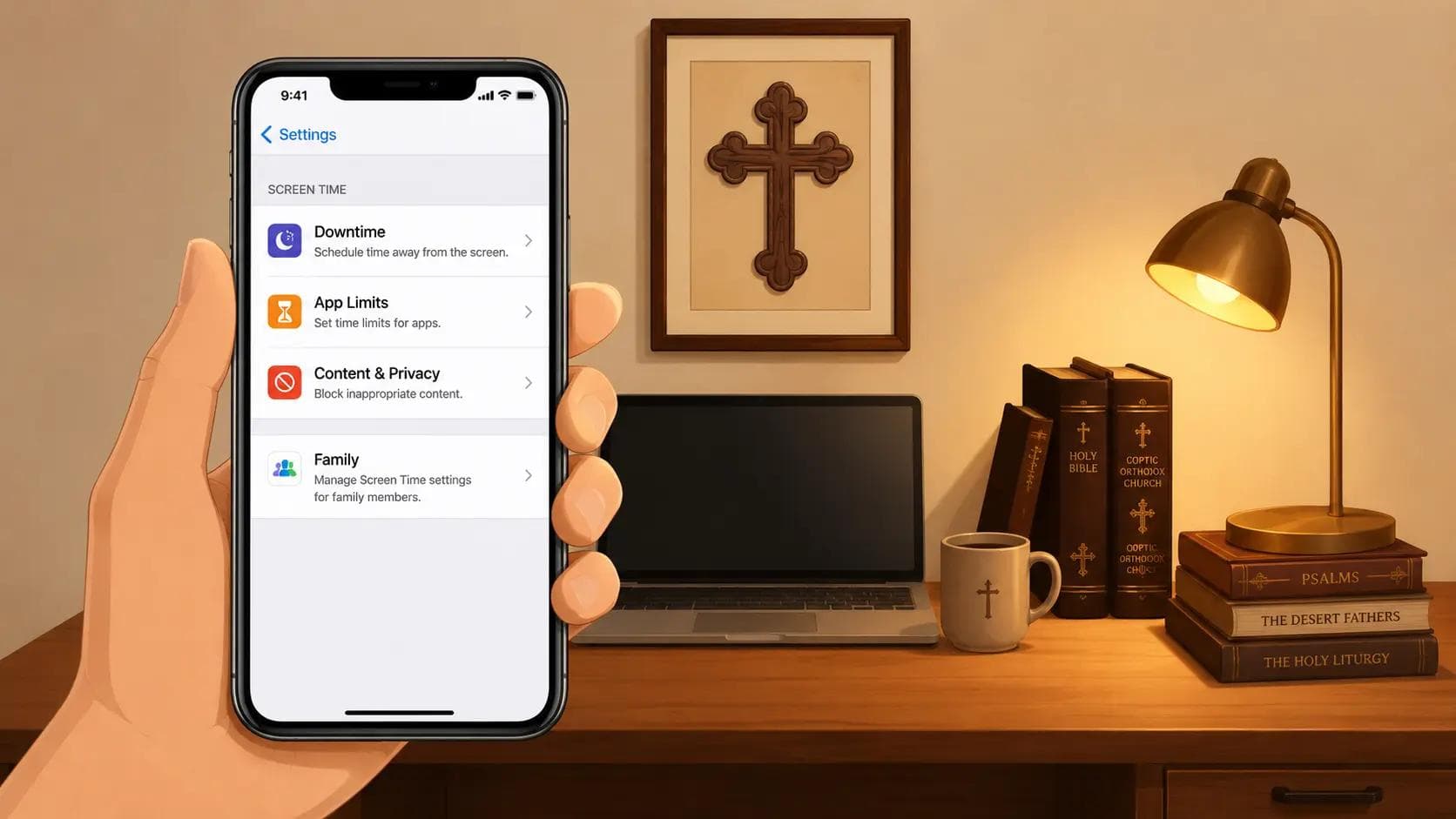
The Normal Parent’s Guide to iPhone Screen Time
A simple parent-friendly guide to setting up iPhone Screen Time for kids without the overwhelm. Learn the most important settings, safety features, and controls that actually matter.
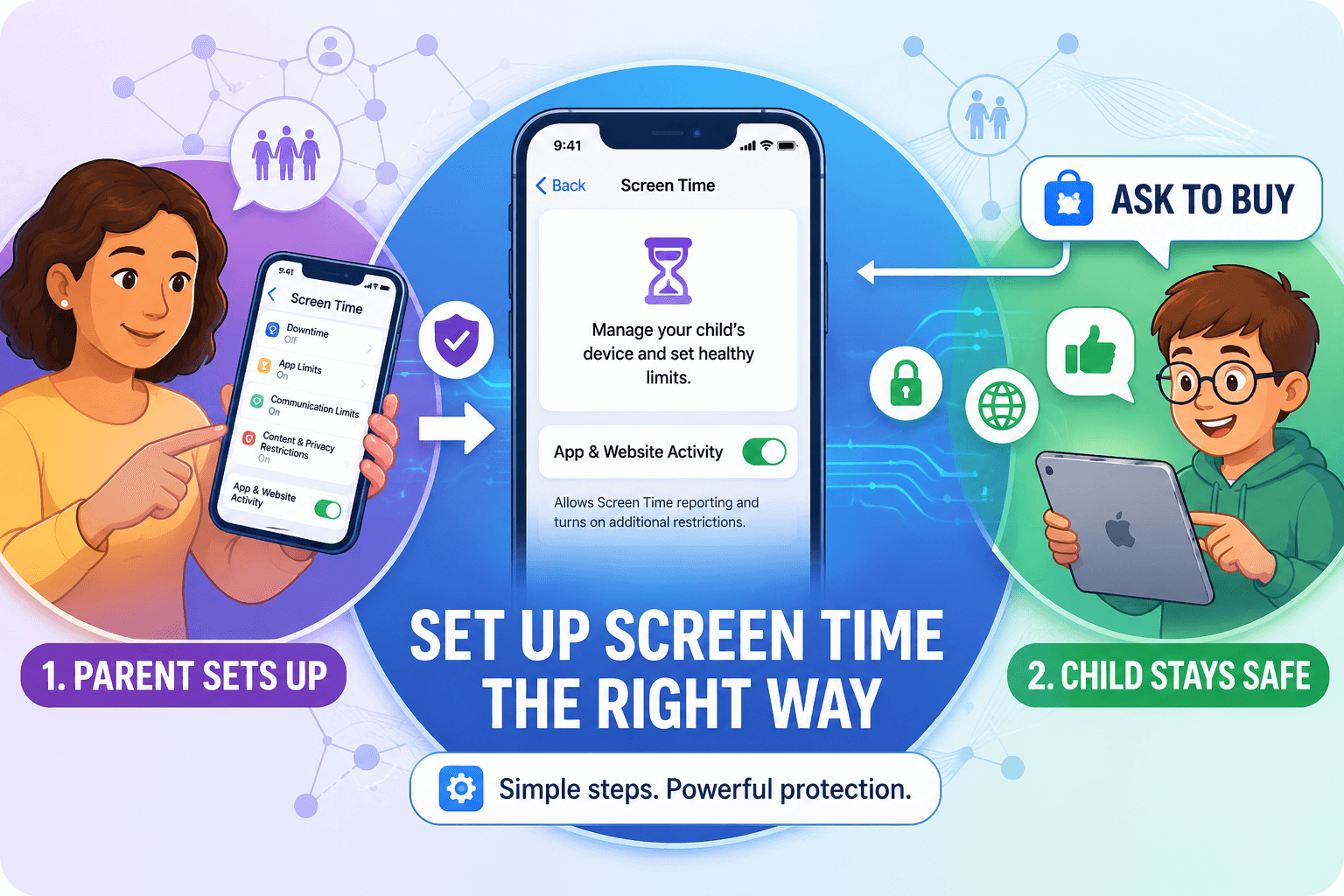
Let’s just say it out loud.
Repeat after me:
Setting up an iPhone for a child should NOT feel like a NASA launch sequence.
And yet… here we are.
It’s a maze of options, hidden menus, and Screen Time settings buried three layers deep. But honestly, buried inside all those menus are some really solid tools that can help you create a much safer environment for your child.
The challenge is that Apple explains these features like they were written by engineers for engineers.
Think of it like standing in the church parking lot after Sunday liturgy, talking to another family with older kids who already endured the pain of figuring all this out.
Let’s dive in.
Before You Start
Before we even touch Screen Time settings, make sure you already completed these two steps first. They should only take about 10–15 minutes total:
- How to Create a Child Apple Account and Set Up Family Sharing
- How to Set Up a New iPhone or iPad for Your Child
Screen Time Basics
Grab your iPhone and go to:
Settings → Family → Your Child → Screen Time
This is mission control. This is where all the important parenting settings live.

You are finally here.
Congrats — you officially made it to Screen Time.
At first glance, this page feels like Apple handed you the control panel for a small spaceship. Don’t panic. You do NOT need to configure everything tonight.
We are only going to focus on four settings first.
- 1DowntimeSets “phone off” hours for bedtime, school, or family time
- 2App LimitsHelps reduce endless gaming, YouTube, and scrolling sessions
- 3Always AllowedLets important apps like Phone or Messages still work
- 4Communication SafetyAdds protection for inappropriate photos and sensitive content
That’s it. Start small. You can always fine-tune things later.

There’s a lot more hiding inside Screen Time, but we’ll walk through the important parts together in the next guides:
- Click here to learn about Communication Limits & Communication Safety
- Click here to learn how to Block Inappropriate Websites and Content
- Click here to learn how to Manage Apps, Games, Downloads, and Purchases
No need to configure all of this in one night. Start with the basics first.
Bonus Tips (Optional but Highly Recommended)
Turn On “Ask to Buy”
Go to:
Settings → Family → Your Child → Ask to Buy
This forces your child to get approval before downloading apps or making purchases.
Trust me — this setting alone can save you from random game downloads, accidental purchases, and “Dad I didn’t mean to buy 14,000 gems.”

Lock Location Sharing Settings
If your family uses Find My, consider turning on:
Go to:
Settings → Family → Your Child → Location Sharing
This prevents your child from disabling location sharing without you knowing.

Tags
Share this post
Comments
Be the first to leave a comment.